The Copilot Experiment
Exploring generative AI tooling for developer productivity

I am a generative AI skeptic. I have been enthusiastic about AI since my college days studying deep learning and linear regression models. However, the hype around generative AI has made me cautious, with a blend of optimism and skepticism. I first started using GitHub Copilot in chat interfaces and IDE plugins to understand JavaScript as a front-end novice. Agentic tooling has advanced rapidly since then and many developers including myself haven't fully embraced it yet.
Two weeks ago, I decided to start an experiment: use newer tooling like Copilot CLI with a higher request limit for all my coding tasks for two weeks. This includes planning, coding, debugging, testing, and documentation. The goal is to see if I can level up my productivity in a meaningful way or not. This post will cover my experiment, findings, and future usage plans.
Setting up Copilot CLI
To start, I installed the Copilot CLI on my development machine. I chose GitHub Copilot because I already had a subscription and approved usage for related projects. Claude Code and OpenAI Codex are also great options I wish to explore and have enough familiarity to say they wouldn't alter the results of this experiment significantly. The commands, available features, and limitations are similar enough across these tools.
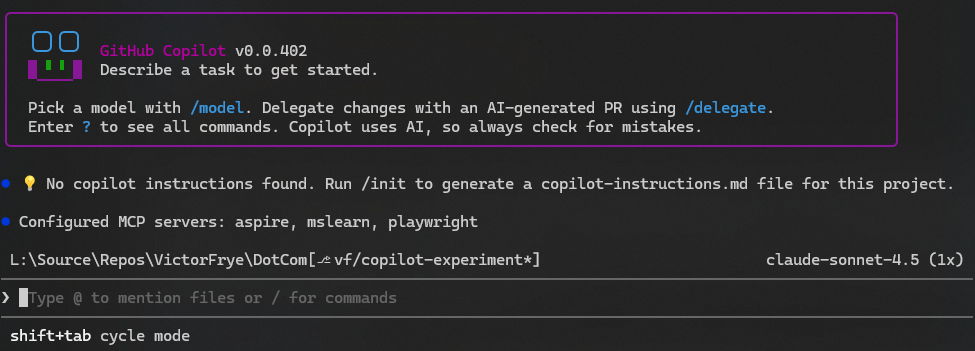
After installation, the first step was to run Copilot. This is the command-line tool. It isn't your IDE with a chat interface, it is a Terminal-based user interface (TUI). Launching Copilot is now a command I have memorized:
1copilot
I fixate on how we launch Copilot because this TUI is where I spent most of my development time during this experiment. I primarily write .NET and TypeScript code, but I don't launch Visual Studio. Even VS Code is closed most of my day. To learn this habit and fully give agentic AI a chance, I committed hard.
A new workflow
Starting with Copilot CLI also meant rethinking my inner loop. Normally, my process is as follows:
- Open work item in backlog (Azure Boards, GitHub Issues, etc.)
- Review requirements, acceptance criteria, and make a mental plan
- Open IDE and explore existing code (Visual Studio, VS Code, etc.)
- Set up local environment (if applicable)
- Author code changes
- Validate changes (build, test, debug, etc.)
- Repeat writing and validating steps until done
- Write documentation (if applicable)
- Commit and push changes
- Self-review and create pull request for team review
This was my inner loop for most coding tasks. I didn't plan what this new process was going to look like exactly, but I knew Copilot CLI would be central. With a first task selected, I repeated steps 1 and 3. Then, I switched to running copilot in my terminal.
At this point, everything is new, but I had some advice. "Start with plan". Copilot and similar tools work best with a lot of context. The more context you provide, the better the results. Therefore, I started by writing a plan in the Copilot TUI. This is done by typing /plan and then describing what I wanted to accomplish. For example:
1/plan
2
3This codebase has ABC services in the solution. We are working in .NET 10. I want to add the ability to do XYZ.
4The requirements are 1, 2, and 3. The acceptance criteria are A, B, and C. We will need a new endpoint to handle this and are using Minimal APIs.
5I also want to ensure we have unit tests using xUnit v3 with Microsoft.Testing.Platform and Moq for mocking dependencies.
6Finally, I want to update the README to document this new feature.
7
8Ask me any clarifying questions for more context.
Obviously I can't share the exact details of a prompt for proprietary code, but you can get the general idea. Some callouts though: (1) we spend a lot of time describing the codebase including tech stack and specific libraries to use and (2) we include in the plan prompt that we want Copilot to ask us questions. The first I quickly learned was unnecessary, kinda. We can add context files that provide much of this information for us systematically. The second, asking the agent to ask questions, is vital. These first stage questions have become a key part of my workflow. No code gets written by me or Copilot until we have gone back and forth a few times clarifying requirements and constraints. It helps me recognize if I missed requirements or edge cases or just how I want the code to be structured. At the end of the question phase, we have a solid plan. Literally. Pressing Ctrl+Y in the TUI pulls up a markdown file with summaries, todos, code segments, and more. During this phase, Copilot is reading and understanding the codebase and generating a documented plan that both of us can agree on and refer back to during the rest of the development loop.
Always start with a plan.
Note again, at this point even in my first session I haven't written any code. We've authorized Copilot a few times to read files, but no changes have been made. After this, we switch out of plan mode with Shift+Tab which I quickly learn to memorize for going back and forth between modes. Now, we say the magic words:
1Do it
I think the formal words are "start implementation" or something, but I've come to love typing "Do it" and imagining that Darth Sidious meme as I'm commanding my botchild.
And it goes. Copilot starts requesting authorizations to write and edit files, to run dotnet build and dotnet test, and more. It writes code, runs tests, debugs issues, and even writes documentation. All while I sit back. On very rare occasions, I send a steering prompt when I notice it spinning in circles or going off track. However, I also quickly learn that letting Copilot reach a point of conclusion and then replanning is less disruptive. It's not perfect, but I've quickly found focusing on that plan stage and spending more time there yields better results. I have also gotten bored and less concerned with permissions, so I've changed my launch command:
1copilot --yolo
I adore that --yolo flag because YOLO, but also because it enables all permissions by default. This means I spend less time approving actions like dotnet build and get faster results. You may not want to start here, but after refining my planning abilities and adding context I found the restrictions unnecessary.
The model that sings
Before starting this experiment, I had limited requests available and defaulted to claude-haiku-4.5 frequently for my chat-based AI needs. Haiku is cheap and I focus on small sections, rarely needing large context. It worked. Haiku didn't for this. More advice came into play here: "Use the big one".
I switched to claude-opus-4.5 for almost all my sessions. I've started to pull back and use Sonnet and Haiku again at certain occasions, but if you repeat this experiment I highly recommend starting with the biggest cloud model you have access to. The larger context windows and more advanced reasoning capabilities make a huge difference. I noticed this immediately during planning as Opus would note code duplication or architectural patterns I didn't mention and prevent replanning. During implementation, Opus just performed better. The code was cleaner, aligned to our best practices, and required less steering. The debugging was more accurate too. Overall, Opus was the model for me.
Automating context
Copilot can use your existing documentation for retrieving context. Developers either love or neglect their READMEs, wikis, and code comments. I can author an amazing README, but I hate wikis and neglect inline documentation. However, READMEs are for people. Agents love a different set of documents: copilot-instructions.md, AGENTS.md, CLAUDE.md, etc. Given the various tools available, I like a consistent approach. I wanted to adopt an AGENTS.md file for my projects. Copilot can help with this. Copilot offers a /init command that scans your codebase and generates its preferred copilot-instructions.md file under the .github directory. I ran this, then did what I love and started a plan mode. In this plan mode I asked Copilot to generate an AGENTS.md file based on the generated instructions and reference this in the copilot-instructions.md. I also ideated some other useful context like common dotnet commands to run, core libraries we are using that I noticed it spinning on or diverging from, and behavior preferences like using conventional commits. After planning, I said "Do it" and let Copilot modify and generate our context files. This took only a few minutes and it removes a lot of upfront planning time in future sessions. Now, every time I plan with Copilot I don't need to remind it that Microsoft.Testing.Platform is our test runner and has different filter options or correct it when it uses NSubstitute instead of Moq. The context files handle this for me.
Model context protocol
I just mentioned Microsoft.Testing.Platform (MTP). We are utilizing this as our new test runner and its new. Most current models are trained with VSTest runner as the only option, or at least the most common. Therefore, I noticed Copilot frequently using options and flags that don't work, wasting my time and tokens. To solve this, I leaned into another AI innovation: model context protocol (MCP). Copilot allows us to add MCP servers through its TUI with the /mcp add command. In my case as a .NET and Azure developer, I added the Microsoft Learn MCP. With this, during my AGENTS.md planning I told Copilot to "fetch the docs" related to MCP and note filter options and create a cheat sheet for itself. Since doing this, Copilot has stopped spinning on running tests. This has saved me so much time and frustration I looked at other MCP servers to add. I found an Aspire MCP and Playwright MCP that I have added that have both improved my experience. It's embarrassing to say how long it took me to start utilizing MCP servers, but now that I have I can't imagine going back.
My findings
At this point, I've mostly internalized this new workflow:
- Open work item in backlog (Azure Boards, GitHub Issues, etc.)
- Review requirements and acceptance criteria
- Launch Copilot CLI
- Collaborate on plan with Copilot until ready
- Say "Do it" to start implementation
- Review code changes, provide feedback, and replan as needed
- Run system and do product testing
- Create a pull request for team review
This workflow isn't perfect, but I find myself at the end of this experiment with a clear takeaway: using Copilot CLI has leveled up my productivity in a meaningful way. It's not automating my job, but it's morphing my inner loop. I still have to have refined work to do. I still have to understand how those requirements might be implemented in complex systems, how they interact with existing code, and what edge cases to consider. However, my mental models are shifting to markdown files, plans, and prompts. I'm making high-level decisions about what code to write, then letting Copilot write the code. I review, I steer, I still test and run the application, I'm just less concerned with language syntax, boilerplate, and if I missed a semicolon. I recall my year as a product owner and feel like I've shifted halfway in-between. Programming is getting automated, but software engineering is still very much a part of the job.
At the end of the two weeks, I reflect now and have to answer if I will continue using Copilot CLI. The answer is a resounding yes. This is my new normal. I have plans to see if additional MCPs are available for other areas of the tech stack. I want to explore subagents for segmenting context and tasks. I need to refine and improve my new developer experience. I find myself taking another step away from skepticism and towards curiosity. Software engineering isn't going away, but the way we do it is changing.
I started a skeptic. Now, I'm a believer.